Recently Archived
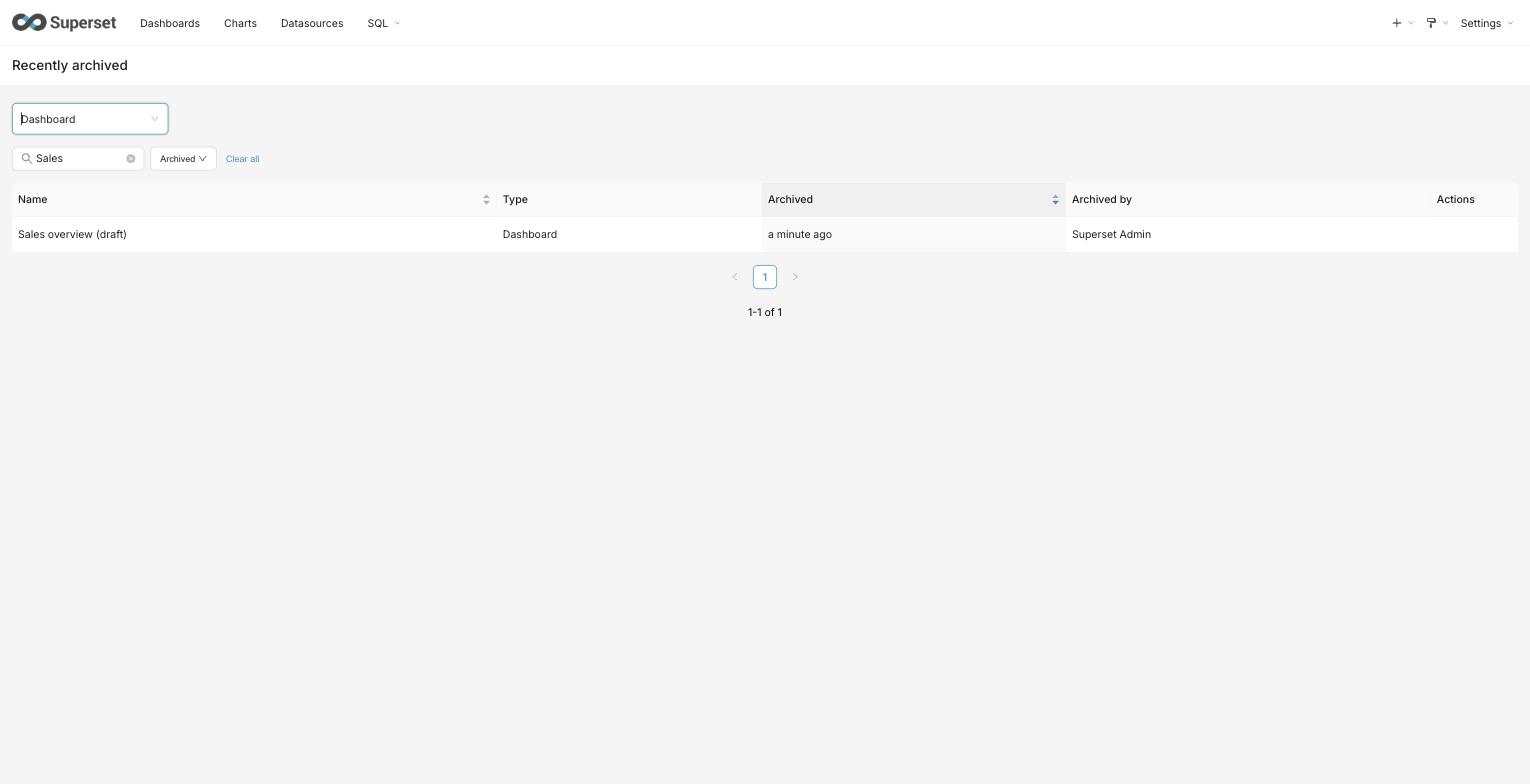
When soft-delete is enabled, deleting a chart, dashboard, or dataset archives it instead of removing it permanently. The Recently Archived view lets owners and admins find archived objects and restore them.
A chart used by an alert or report cannot be archived while that dependency exists. In the chart list view, the archive confirmation lists the alerts and reports that use the chart; a blocked attempt names them and asks you to detach or delete them first.
This view is gated by the SOFT_DELETE feature flag. When the flag is off the
page and its menu entry are hidden, and deletes are permanent as before.
Finding archived objects
Open Recently Archived and pick a type — Chart, Dashboard, or Dataset (shown as Datasource when semantic layers are enabled) — from the Type selector. The view shows one type at a time; each type is read from its own list endpoint, so the same row-level access rules that govern the normal lists apply here.
Each row shows:
- Name — the object's name. Archived objects cannot be opened from here; recover one first and it returns to its normal list, where it opens as usual.
- Type — the selected object type.
- Archived — how long ago the object was archived (sortable).
- Archived by — the user who archived it.
Narrowing the list
- Name search filters by a substring of the object's name.
- Archived time-range presets (Last 7 / 30 / 90 days, or All time) narrow the list to objects archived within the window.
The list is sorted by archive time, most recently archived first.
Recovering an object
Use the Recover action on a row to bring the object back. It immediately returns to its normal list and disappears from the archive. Recovering is limited to the object's editors and admins; you can only recover objects you are able to see in this view.
Seeing an archived object and acting on it are separate permissions: objects you can view but not edit still appear in the list. The Recover and Delete permanently buttons appear only if you have edit permission for that object type; recovering a specific object can still be refused if you are not one of its editors.
Deleting an object permanently
Use the Delete permanently action on a row to remove an object for good. You will be asked to confirm.
This cannot be undone. Unlike archiving, it does not move the object anywhere — the object and its version history are erased, and no retention window applies. The same audience that can recover an object can delete it permanently: its editors and admins. As with recovery, the action appears only if you have edit permission for that object type; a specific object can still be refused.
Some objects cannot be deleted permanently while something still depends on them. A chart used by an alert or report, for example, is refused until that alert or report is removed, and the reason is shown. Charts that belong to dashboards are removed from those dashboards as part of the deletion; the dashboards themselves are left in place.
Before an archived dataset is deleted permanently, Superset checks which charts still use it and which dashboards contain those charts. The confirmation shows the total number of affected charts and dashboards, identifies the ones you are allowed to access, and reports the remaining objects only as restricted counts. Restricted names, identifiers, and links are not displayed. Archived dependents are included because they can still be recovered after the dataset is gone.
Deleting the dataset does not delete those charts or dashboards. They remain in place without a usable dataset and may therefore be broken. If there are no dependents, the confirmation explicitly reports zero affected charts and dashboards.
The dependency check fails closed. While it is loading, or if its result is unavailable, permanent deletion is disabled; cancel or retry the check. Superset checks again when you submit. If dependencies changed while the confirmation was open, the refreshed impact replaces the previous result and you must type DELETE again before proceeding.
Scheduled retention can also permanently delete archived objects after the retention window, subject to deletion rules and the operator configuration described below. A successful run is required; reaching the age threshold alone does not delete an object.
Configuring retention (operators)
The deletion_retention.purge_soft_deleted background task purges eligible
archived objects older than the retention window. The default Celery beat
configuration schedules it daily at 00:00 in the configured Celery timezone.
The task skips purging when SOFT_DELETE is off or the window is zero.
The window resolves in this order:
-
A host policy, when one is installed as
SOFT_DELETE_RETENTION_DAYS_FUNC. Its result is authoritative; the two sources below are not consulted. -
Otherwise a per-deployment value set with the CLI, when present:
superset deletion-retention set-window --days 60superset deletion-retention show-window # print the effective window -
Otherwise the
SOFT_DELETE_RETENTION_DAYSconfiguration value, which is seeded from the environment variable of the same name and defaults to 30.
Every source accepts whole days from -1 through 36500:
- Zero disables scheduled purging, so archived objects are kept until someone deletes them permanently by hand.
-1makes every archived object eligible on the next scheduled run. It does not start a run, and an object with a future archive time stays ineligible.- Any other negative value, a value above 36500, or a non-integer is invalid.
An invalid value defers purging; it never shortens the window. The CLI refuses to store one. An invalid stored value, configuration value, or host policy result (including a host policy that fails) is treated as zero and logs a warning. Only an absent stored value falls back to configuration, and only an absent configuration value uses the 30-day default.
SOFT_DELETE_PURGE_DRY_RUN defaults to False: scheduled purging is
destructive when it runs. Set it to True in superset_config.py and restart
the relevant processes to log what the task would purge without deleting
anything. Validate the eligible backlog before enabling live purging or
shortening a window; the first live run can process accumulated old archives.
Running retention tasks
For automatic retention, operators need all of the following:
- A running Celery beat scheduler and workers connected to the appropriate broker and queues. See Celery configuration.
- Task registration on the workers. The default
CELERY_CONFIG.importsincludessuperset.tasks.deletion_retentionandsuperset.tasks.version_history_retention. - Entries in
CELERY_CONFIG.beat_schedulefordeletion_retention.purge_soft_deletedandversion_history.prune_old_versions. When replacingCELERY_CONFIG, preserve the default imports and schedules or supply equivalent entries; task registration alone does not schedule execution. - Retention windows other than zero and, for deletion purging,
SOFT_DELETEenabled andSOFT_DELETE_PURGE_DRY_RUN = Falsewhen real deletion is intended.
Check startup warnings for missing imports or schedules, and verify completed runs and their results in worker logs or monitoring. A configured schedule does not prove a task has run successfully. The two tasks have separate controls: the purge dry-run switch does not disable version-history pruning.
Immediate operator purge
For compliance cases that cannot wait for the window, an operator can purge a single entity immediately and irreversibly by UUID:
superset deletion-retention force-purge --uuid <uuid> --type dashboard
This CLI requires operator shell access and asks for confirmation. It can
target live as well as archived objects, bypasses the retention window, and
is not protected by SOFT_DELETE_PURGE_DRY_RUN. Existing dependency blockers
can still refuse deletion; check the command's reported result rather than
assuming the requested purge occurred.
Earlier implementations return exit status 0 even when a dependency blocks deletion or the target does not exist; implementations with the non-success exit-status fix return 1 in those cases. For deployments that may include the earlier behavior, automation must inspect the reported outcome, not treat exit status 0 alone as proof of erasure.
The purge removes the entity together with its version history. The retention window for version history itself is configured separately and is described on that page.